|
In this lesson, you will learn how to use the Arduino microcontroller to manipulate a digital output device, in this case a light emitting diode (LED). Each digital output device has two possible states, HIGH and LOW, usually corresponding to whether the device is on (HIGH) or off (LOW). The HIGH and LOW states are represented by voltages. The Arduino uses 5 volts to represent HIGH and 0 volts to represent LOW. So to turn on an LED, we instruct the Arduino to send a "HIGH" (or 5V) signal to it. To turn it off, the Arduino sends a "LOW" (or 0V) signal to the LED.
2. Arduino Pins and Pin Mode: INPUT and OUTPUT To have your Arduino output voltage (i.e., send the voltage signals) to an LED, you need to know which Arduino pin the LED is connected to, and then set up that pin for output. We do this using the function pinMode( PIN#, MODE), where MODE is either OUTPUT or INPUT and PIN# is the number of the pin being used (13, in this example):
3. Turn on the LED Using digitalWrite Once the pinMode is set (and the LED connected properly to that pin), we can instruct the Arduino to turn on the LED by sending a HIGH (5V) signal to that pin, or turn it off by sending a LOW (0V) signal to the pin. To do this, we "write" the signal to the pin by using the function digitalWrite(PIN#, STATE), where STATE is either HIGH or LOW:
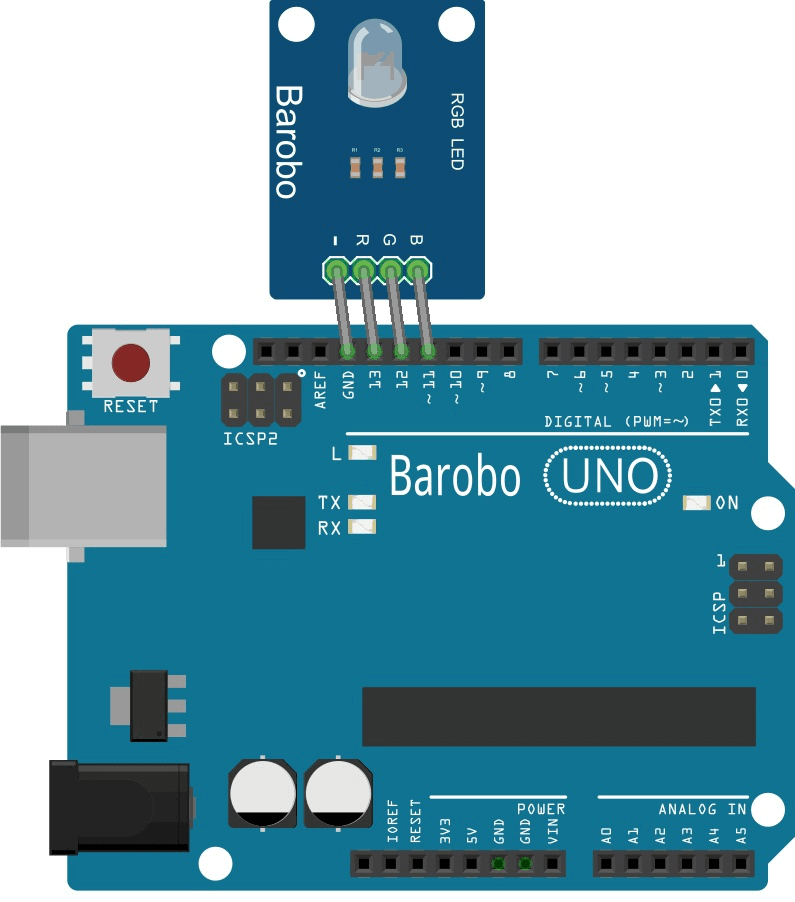
4. Connect the LED to the Arduino The picture on the left below shows how the Barobo RGB LED module should be connected to the Arduino. To enlarge the picture, click the "L" radio button at the bottom left in the buttons below the grid:
|



Use the Arduino to turn on the red LED in the Barobo RGB LED module, wait two seconds, then turn it off. Student Talk
|