
Announcements
Note: This page can be accessed using the "three bar" menu (also called a "hamburger" menu) at the top left of RoboBlocky after you sign-in:

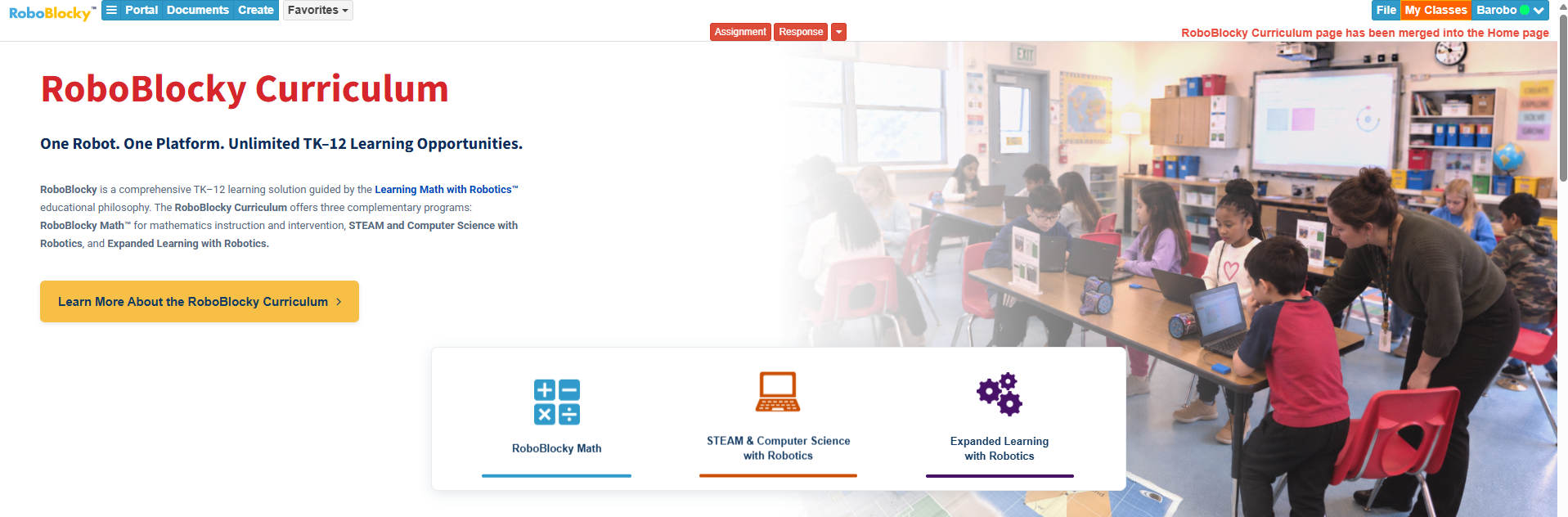
10/18/2026: RoboBlocky Curriculum page merged into Home page
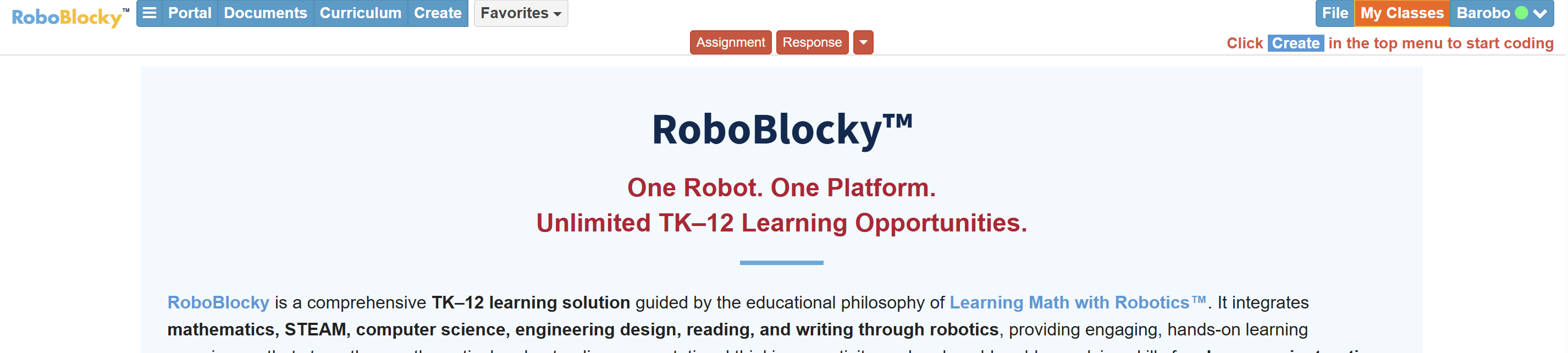
We’ve given RoboBlocky a fresh new look! Our updated design features a cleaner, more modern interface, improved organization, and easier navigation to help you find the curriculum, tools, and resources you need.
As part of this refresh, we’ve integrated the Curriculum page into the RoboBlocky homepage, making it easier to explore our curriculum programs and access learning resources all in one place.
While the look has changed, the same RoboBlocky curriculum and learning experiences you know are still here!
We invite you to explore the refreshed website and let us know what you think. We’d love to hear your feedback!
 |
 |
10/18/2026: New RoboBlocky Home Page and Create Button

10/18/2026: Add a Curriculum Link to the My Classes Page for Students

5/27/2025: Control Linkbot in Chromebook without Installing Linkbot IDE

5/27/2025: Control Arduino in Chromebook without Installing Software .
You can access your Arduino from the browser! The new Arduino Controller appears under the Launch menu, making it easier than ever to use your Arduino on a Chromebook, no more installs, just plug in and go. Click here to learn how to use this user-friendly feature for Chromebooks.
